Navigation
2.1 Turnover
2.2 KPI
2.3 Orders
2.4 End of Day (EOD)
2.5 Sales Reports
6.1 Categories
6.2 Products
6.3 Stock Management
7.1 Shops
7.2 Shop Groups
7.3 POS Templates
8.1 Users
8.2 Roles
9. Customers & Customer Groups
10.1 Registers
10.2 Reason Codes
10.3 VAT Rates & Price Regions
10.4 Electronic Journal & Configurations
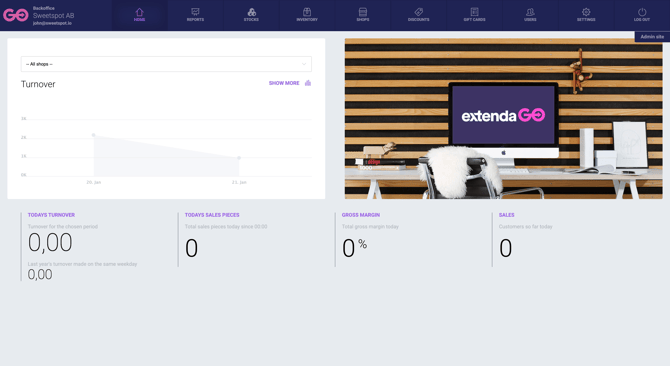
Home Dashboard
The Home page gives you a quick overview of your business performance.
You can see:
-
Today’s turnover
-
Number of sales
-
Average basket size
-
Key performance indicators at a glance
Sales
Turnover
The Turnover view shows:
-
Total sales for the selected period
-
Top selling products
-
Top selling users
-
Top selling registers and shops
You can filter by:
-
Date range
-
Shop
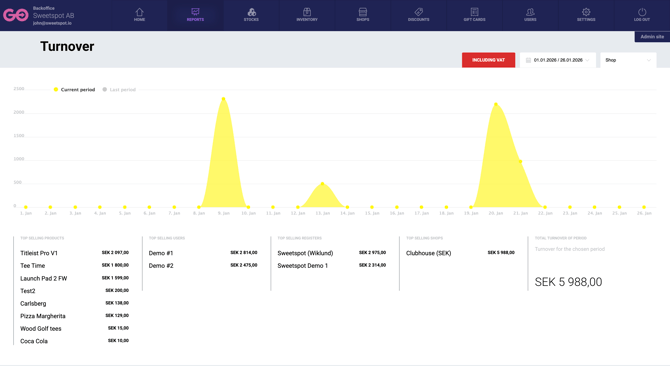
KPI (Key Performance Indicators)
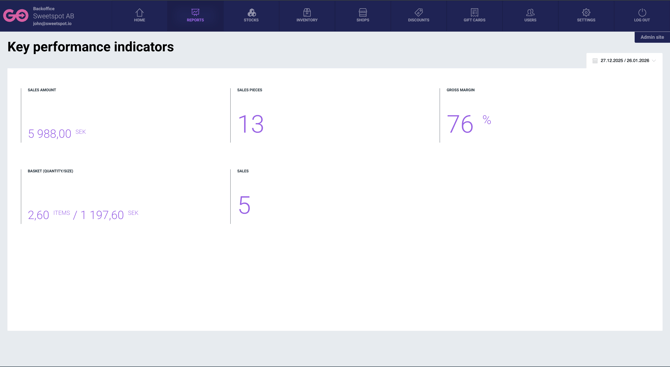
The KPI view provides insights such as:
-
Total sales amount
-
Number of items sold
-
Gross margin
-
Basket size and value
You can filter KPIs by date.
Orders
The Orders view lists all completed sales.
You can:
-
Search by date, order ID, shop, user, or sequence ID
-
View total amount per order
-
Download receipts as PDF
End of Day (EOD)
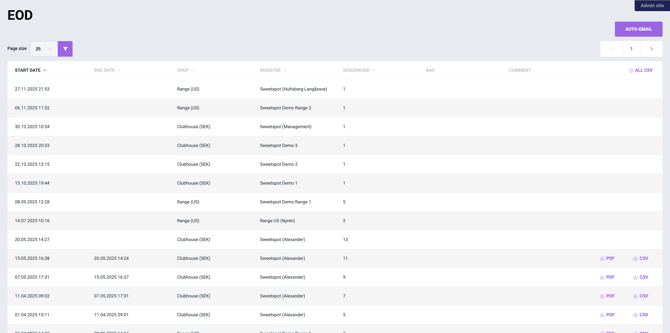
The EOD section shows:
-
When registers were opened and closed
-
Shop and register name
-
Sequence ID
-
Cashier comments (if added)
You can:
-
Download EOD reports as PDF or CSV
-
Download a combined CSV for all shops
-
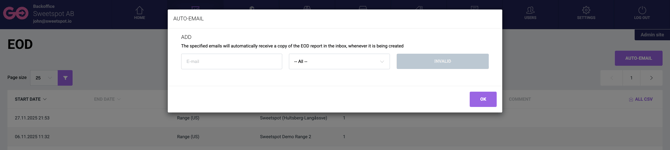
Automatically email EOD reports when the day is closed
Sales Reports
Sales reports give an overview of sales across all shops.
Available report types:
-
Product CSV
-
Transactions CSV
-
Sales Report (PDF)
-
Cashier Sales Report (PDF)
-
Accounting Categories Report (PDF)
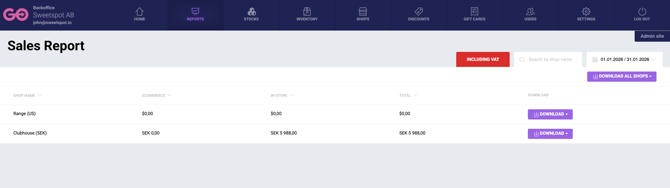
Reports can be downloaded per shop or for all shops.
Tender Types
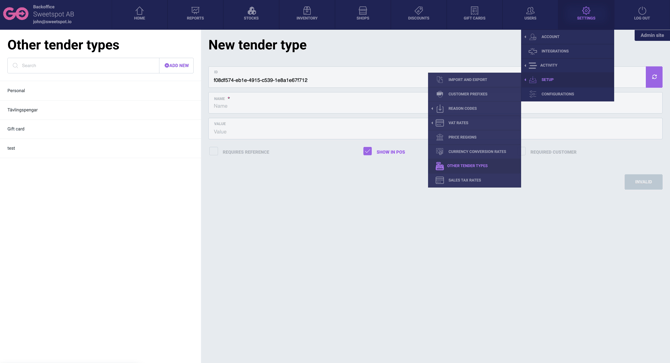
Custom payment methods (tender types) can be created and managed.
Examples:
-
Gift vouchers
-
Corporate payment agreements
-
Shopping centre vouchers
These appear as “Miscellaneous” in the POS payment screen.
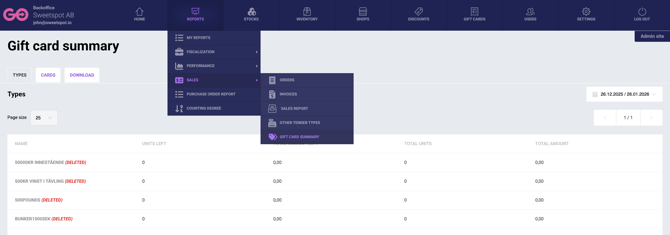
Gift Card Summary
The Gift Card summary shows:
Types
-
Number of active cards
-
Remaining balance
-
Total value
Cards
-
Sold cards per shop
-
Redeemed amounts
-
Remaining value
You can filter by date and shop.
Purchase Order Report
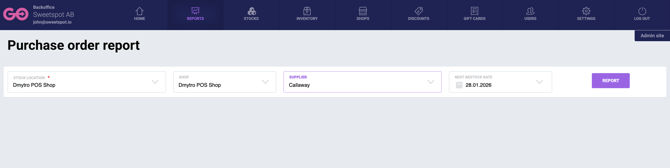
Use this report to generate purchase order suggestions based on stock levels.
Steps:
-
Select stock location

-
Select shop

-
Select supplier
-
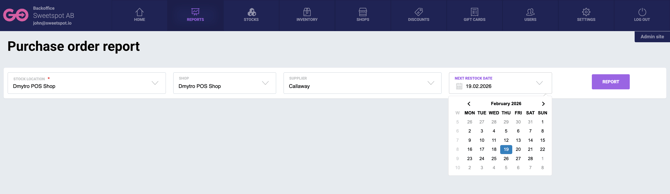
Choose next restock date
-
Generate report
You can adjust suggested quantities and create a purchase order.
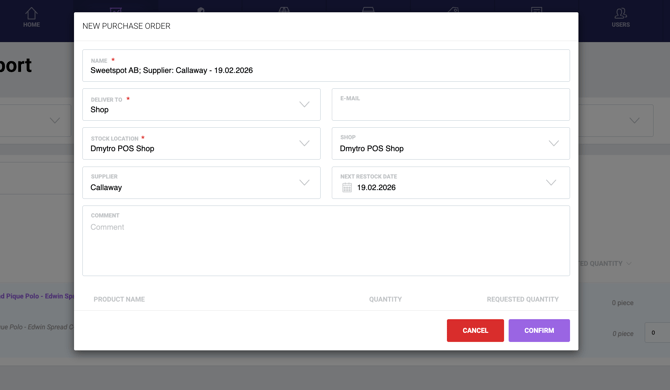
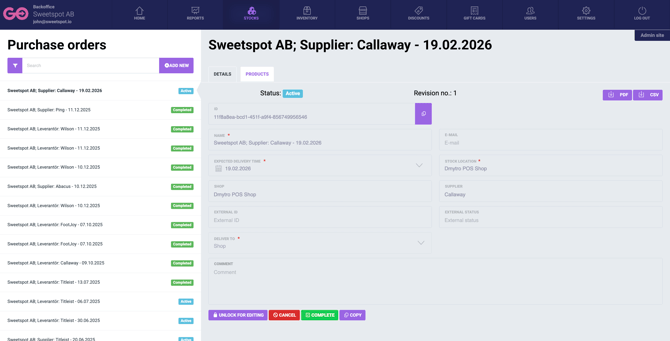
After the Purchase orders have been submitted, you will be taken to the overview of active, completed and canceled Purchase orders. Here you can edit active orders, cancel or complete a Purchase order. You also have the option to download the Purchase order as a PDF and CSV file.
Inventory
Categories
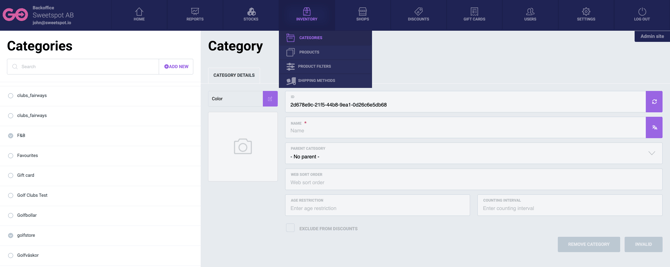
Categories help structure products in POS and Backoffice.
You can:
-
Create categories and subcategories
-
Assign colors or images
-
Set age limits
-
Exclude categories from discounts
-
Define stock counting intervals
Products
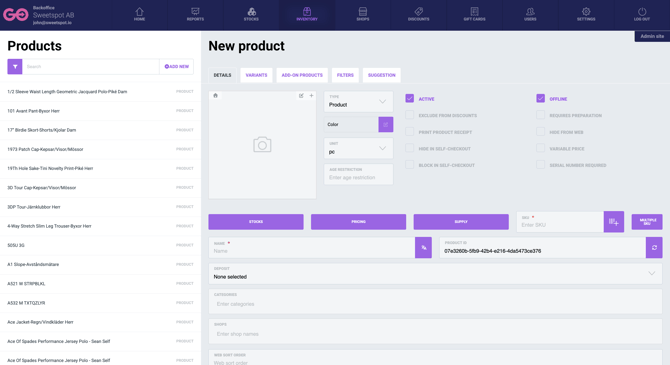
Each product includes details such as:
-
Name and SKU (required)
-
Category
-
Price
-
Stock
-
Accounting category
-
VAT and age limit
-
POS behavior (active, offline, add-on, variable price, etc.)
Stock Management
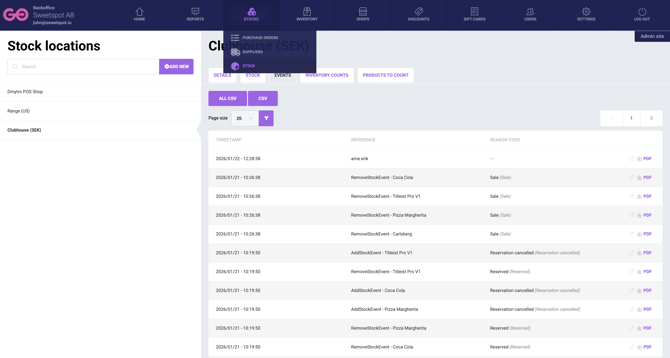
You can manage stock by:
-
Viewing stock per location
-
Adjusting quantities
-
Downloading stock reports (PDF / CSV)
Stock events include:
-
Sales
-
Returns
-
Stock adjustments
-
Inventory counts
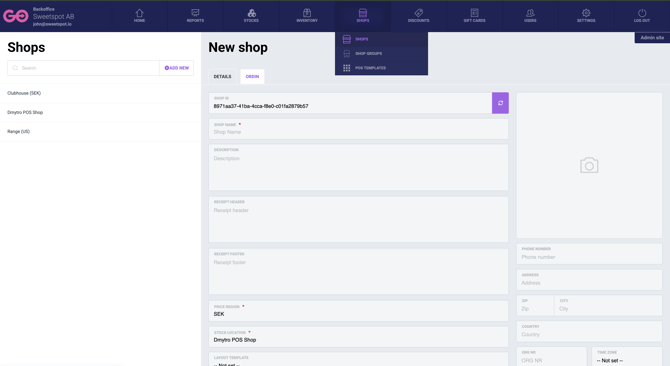
Shops
Create and manage shops by defining:
-
Shop name
-
Price region
-
Stock location
-
Currency (based on price region)
Prices can differ between shops using price regions.
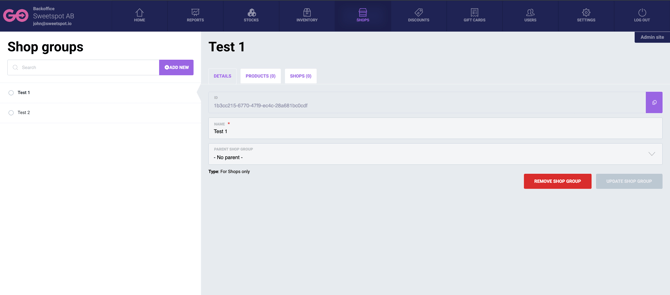
Shop Groups
Shop groups allow you to organize shops, for example by:
-
City
-
Region
-
Brand
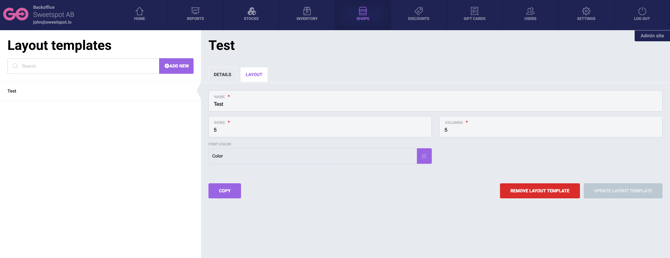
POS Templates
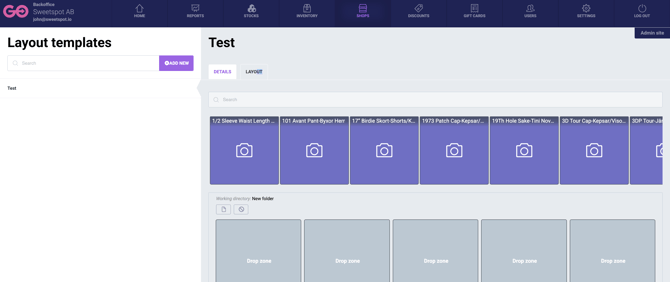
POS templates define how product buttons appear in POS.
You can:
-
Set grid size (rows and columns)
-
Add products by drag-and-drop
-
Create folders (categories) in POS
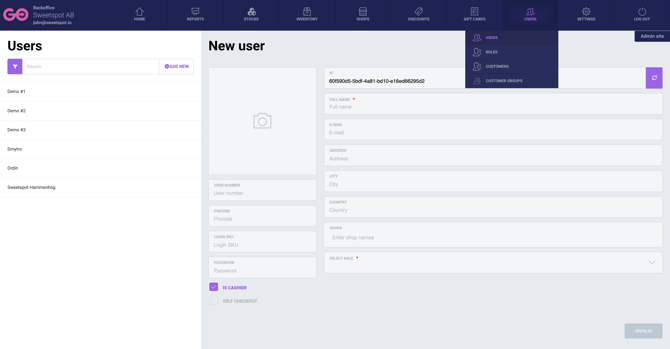
Users
Create users for POS and Backoffice.
Required:
-
Full name
-
Role
Recommendations:
-
Enable PIN codes for cashiers
-
Enable Self-Checkout only when required
Roles
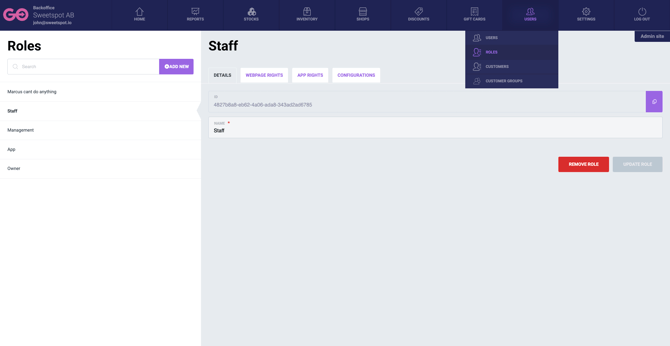
Roles control what users can access.
You can:
-
Create custom roles
-
Configure permissions
-
Assign rights per role
Customers & Customer Groups
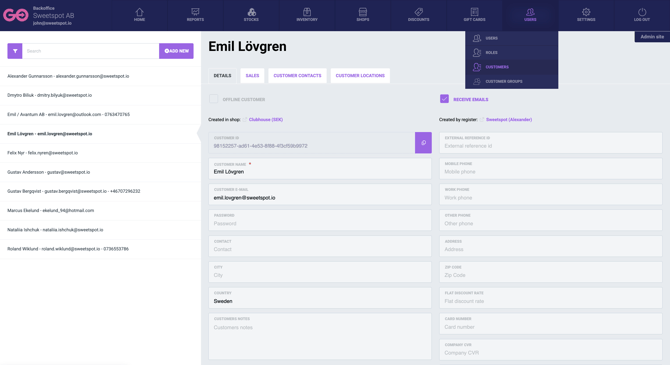
Customers can be:
-
Added individually
-
Assigned to customer groups
Customer groups are used for:
-
Discounts
-
Campaigns
-
Loyalty benefits
Settings
Registers
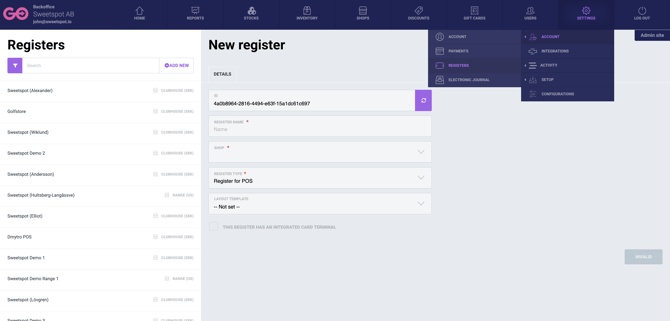
Registers are linked to:
-
Shops
-
POS or KDS
-
Integrated card terminals (if applicable)
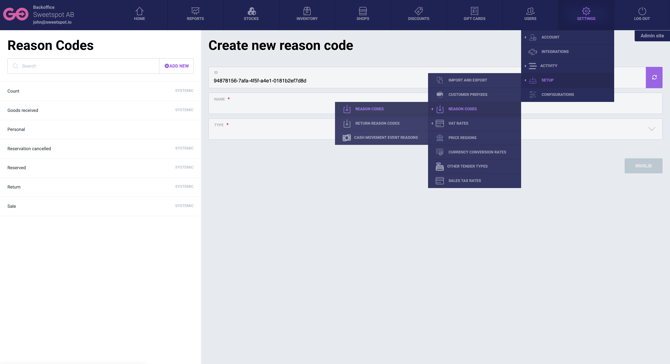
Reason Codes
Reason codes explain stock adjustments.
Types:
-
Positive (increase stock)
-
Negative (decrease stock)
-
Neutral (inventory counts)
System codes include:
-
Sale
-
Return
-
Count
VAT Rates & Price Regions
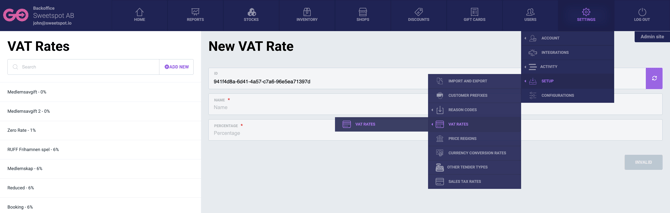
You can:
-
Use predefined VAT rates
-
Create custom VAT rates
-
Define price regions with different currencies and prices
Electronic Journal & Configurations
-
Electronic Journal exports transaction data (JSON)
-
Configuration settings control POS behavior
-
You can add your logo to receipts